How to Convert a Personal Account to an Organization
Logfire allows you to convert your personal account into an organization, making it easier to collaborate with a team and manage projects at scale. Converting to an organization requires selecting a paid plan. You will have 5 days to chose a plan once you converted your account, before the organization gets locked.
1. Open Plan & Usage Page
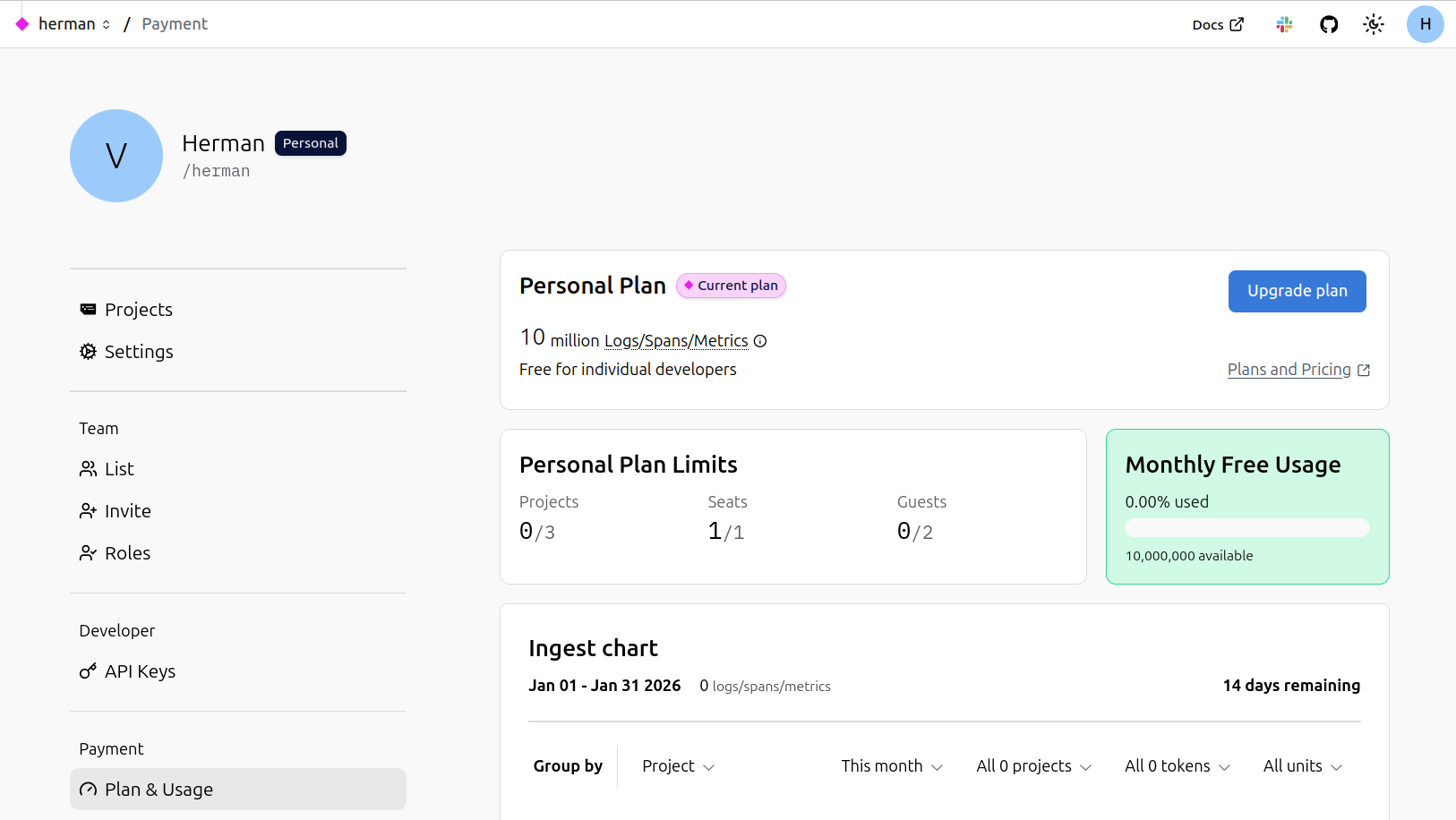
Navigate to your account home page, and go under the Plan & Usage page.
2. Start the Conversion
Click Upgrade plan. A modal will appear, asking you to either convert your account or create a new organization. Choose the first option.
A new modal will appear, outlining the main points of the conversion:
- All existing projects, members, alerts, dashboards, and settings will be moved to the new organization.
- Write tokens will continue to work; you do not need to change any ingest URLs.
- You'll define your new organization's handle and display name.
- You can optionally edit the username and display name for your new personal account.
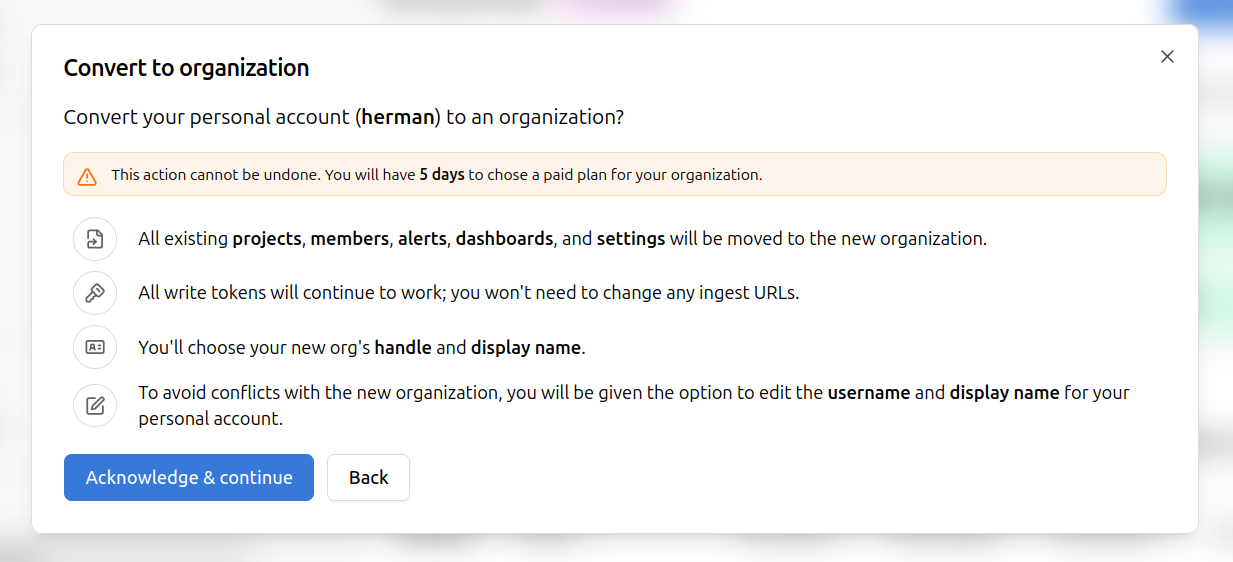
Click Acknowledge & continue to proceed.
3. Set Up Your Organization
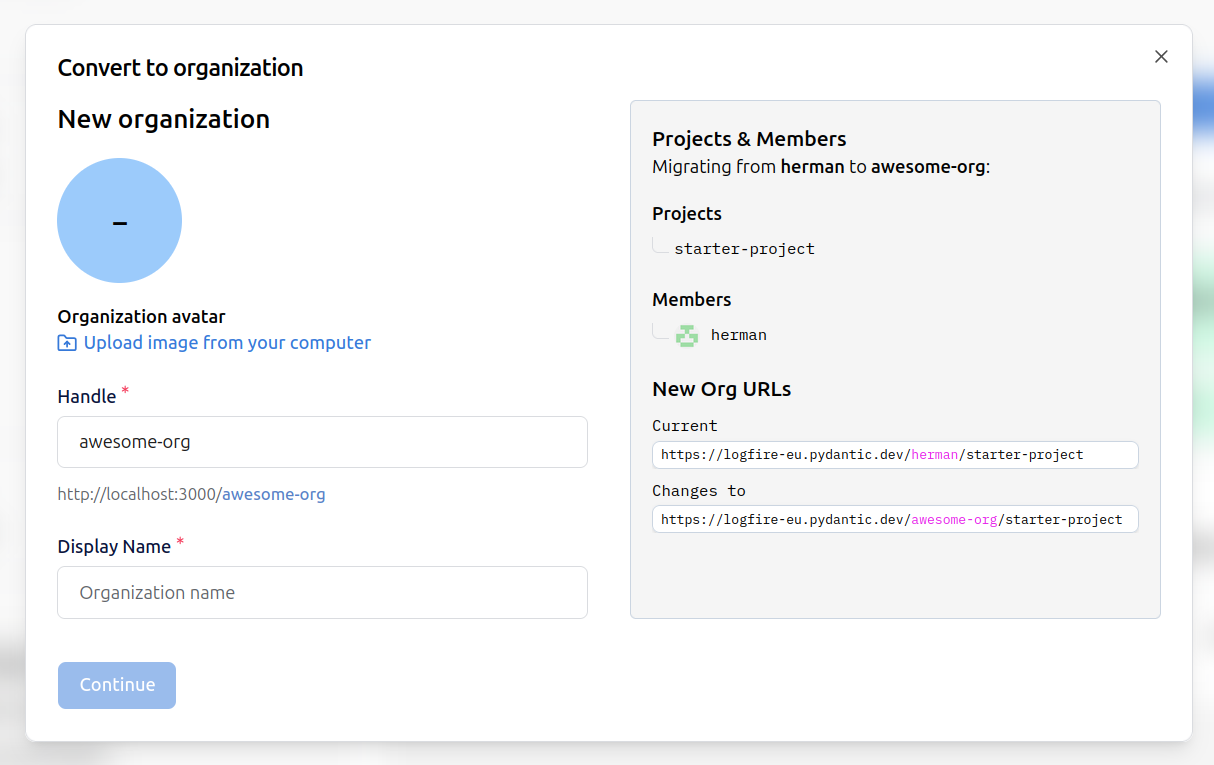
In the next modal, you can:
- Upload an organization avatar.
- Specify the organization handle (used in URLs).
- Set the organization display name.
On the right, you'll see a summary of the migration:
- All your projects and members will be moved to the new organization.
- The project URLs will change from:
https://logfire-eu.pydantic.dev/your-username/project-nametohttps://logfire-eu.pydantic.dev/your-org-handle/project-name.
4. Confirm New Personal Account
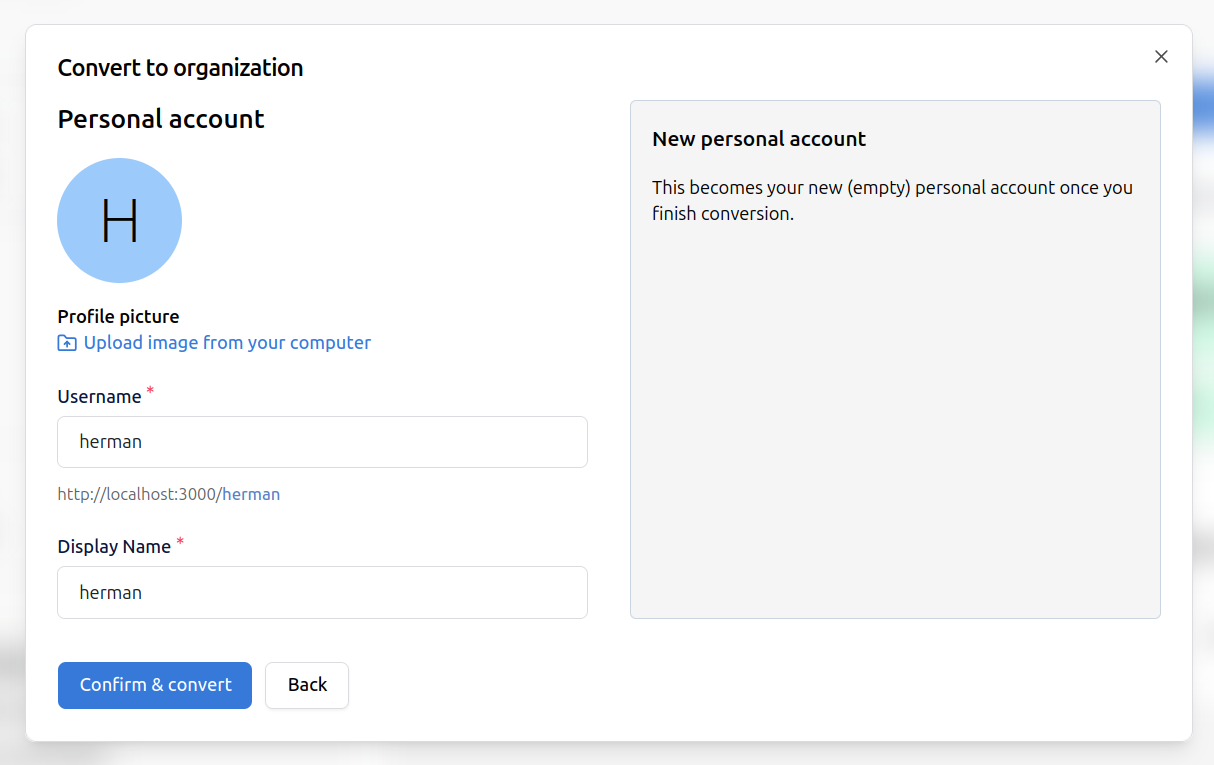
After setting up the organization, you'll be prompted to create a new (empty) personal account with the same name as before. You can confirm and complete the conversion, or go back if you wish to make changes.
5. Complete the Conversion
Click Confirm & convert. The conversion process will complete, and you'll be redirected to the Manage plans page, to select a paid plan.
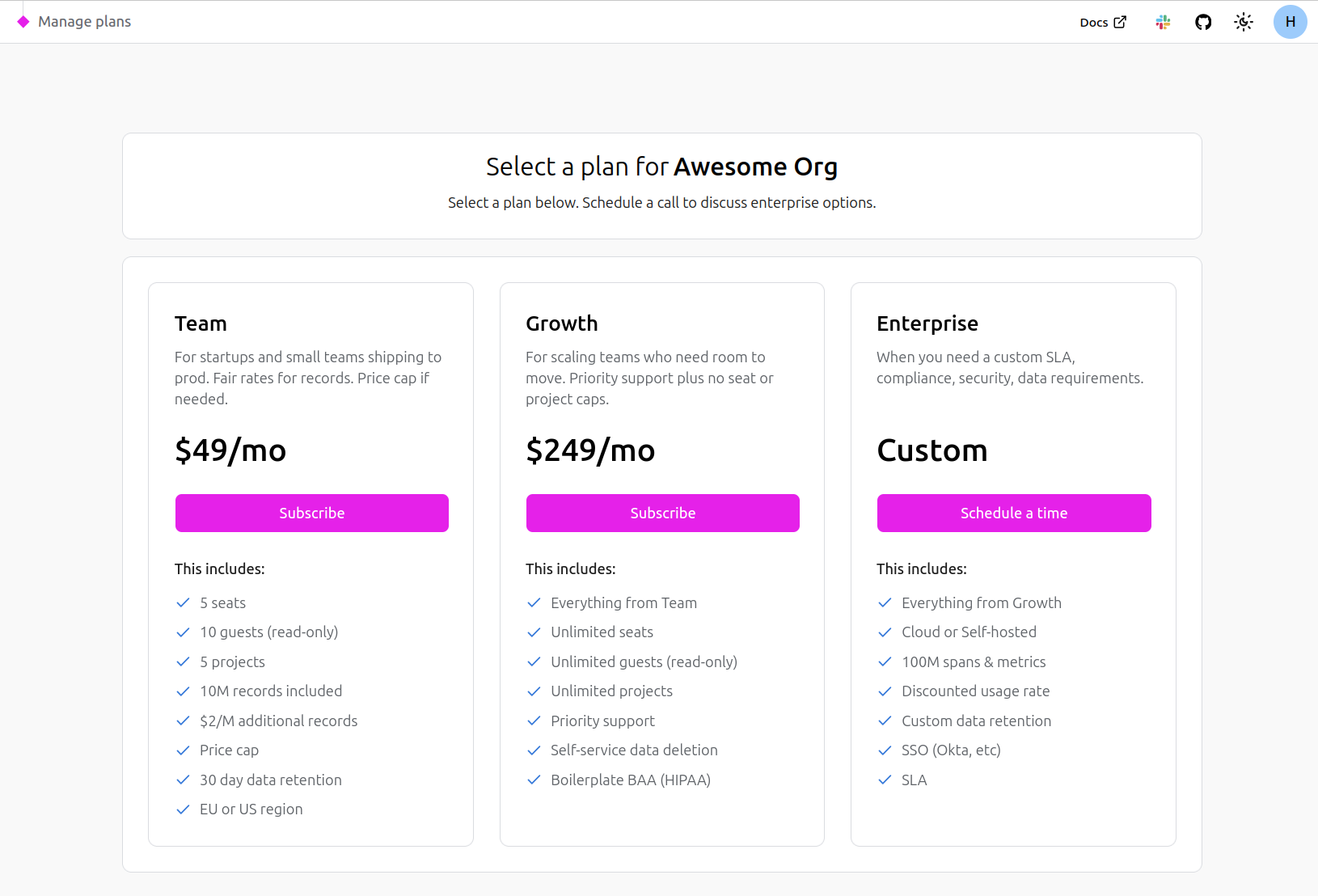
You can still make use of your new organization, but you will have 5 days to select a paid plan before the organization gets disabled.
Summary
- All your data, projects, and settings are preserved during the migration.
- Only the URL changes to reflect the new organization handle.
- The new organization needs to be under a paid plan.
- Your new personal account will be empty, ready for individual use if needed.
See also: Organization Structure Reference